If your GPS keeps losing signal, you are likely missing a few key settings that directly control reception. Most drivers never touch these options, but adjusting them can instantly fix weak or dropped signals. Here are the settings most commonly overlooked.
1. Battery Saver Mode and Location Accuracy
Battery saver mode is the number one culprit for GPS signal loss. When enabled, your phone limits background data and reduces location accuracy by switching from GPS to Wi-Fi and mobile networks. To fix this, go to Settings > Battery > Battery Saver and turn it off. Alternatively, set location mode to High Accuracy in Settings > Location > Mode. This forces your device to use GPS, Wi-Fi, and mobile networks simultaneously for the best lock.
2. AGPS Data Reset and Refresh
Assisted GPS (AGPS) data helps your phone get a faster lock by downloading satellite positions. Over time, this data can become stale and cause signal drops. On Android, use an app like GPS Status & Toolbox to reset and download fresh AGPS data. On iPhone, simply restart your device or toggle Airplane Mode on and off to refresh the connection. Doing this monthly can prevent recurring signal loss.
3. Compass Calibration and Sensor Issues
A misaligned compass can confuse your GPS, causing it to think you are facing the wrong direction. Calibrate your compass by opening Google Maps and moving your phone in a figure-8 pattern until the accuracy indicator changes from low to high. On Android, you can also check sensor health in Settings > Location > Improve Accuracy. If the compass still fails, a factory reset or hardware repair may be needed.
4. App Permissions and Background Location
Many navigation apps lose signal because background location permission is disabled. On Android, go to Settings > Apps > [Your GPS App] > Permissions and ensure Location is set to Allow all the time. On iPhone, go to Settings > Privacy > Location Services > [App] and select Always. Also check that the app is allowed to run in the background under Settings > Battery > App Launch (Android) or Background App Refresh (iPhone).
Frequently Asked Questions
Why does my GPS lose signal in tunnels or urban canyons?
Tunnels and tall buildings block satellite signals physically. No setting can fix this, but your phone can use dead reckoning (accelerometer and gyroscope) to estimate position. Ensure your location mode is set to High Accuracy to enable this feature.
Can a software update fix GPS signal loss?
Yes, manufacturers often release GPS-related fixes in system updates. Check for updates in Settings > System > System Update. Also update your GPS apps from the app store to ensure compatibility.
Is there a hardware fix for persistent GPS problems?
If all settings fail, the GPS antenna or chip may be damaged. A phone repair shop can test and replace the antenna. For a temporary fix, use an external Bluetooth GPS receiver paired with your phone.
The Bottom Line
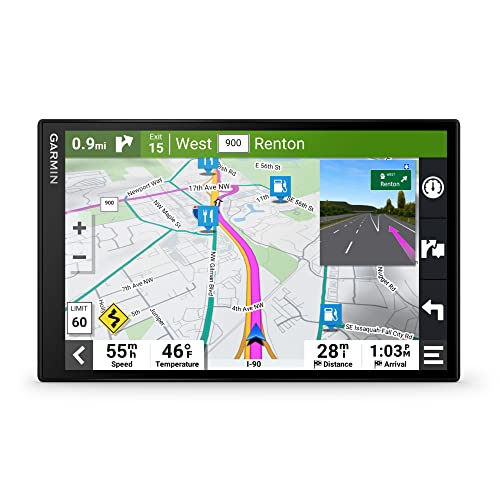
Most GPS signal loss is caused by simple settings like battery saver mode, stale AGPS data, or disabled permissions. Check these four areas first before assuming hardware failure. For a more reliable navigation setup, consider a dedicated GPS navigation device that avoids phone-specific limitations.